Edit Scheduling in Mobile View
This example shows the view of Ines Coric. She has not only read permissions but also write permissions. This allows her to edit existing scheduling entries and create new ones.
These examples refer to Projects, but the same applies to Service Orders.
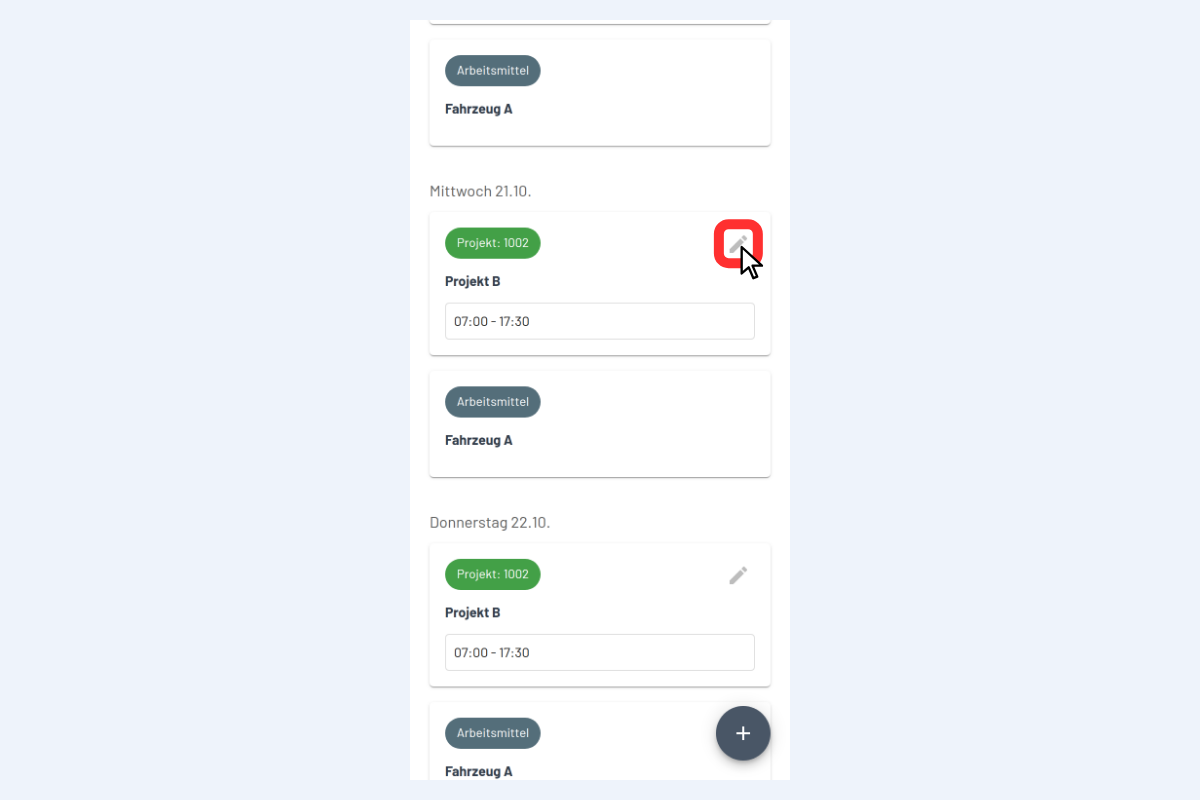
To edit a scheduling entry, click the Pencil icon on the corresponding Project, in this case Projekt B (see Fig. Edit Scheduling).
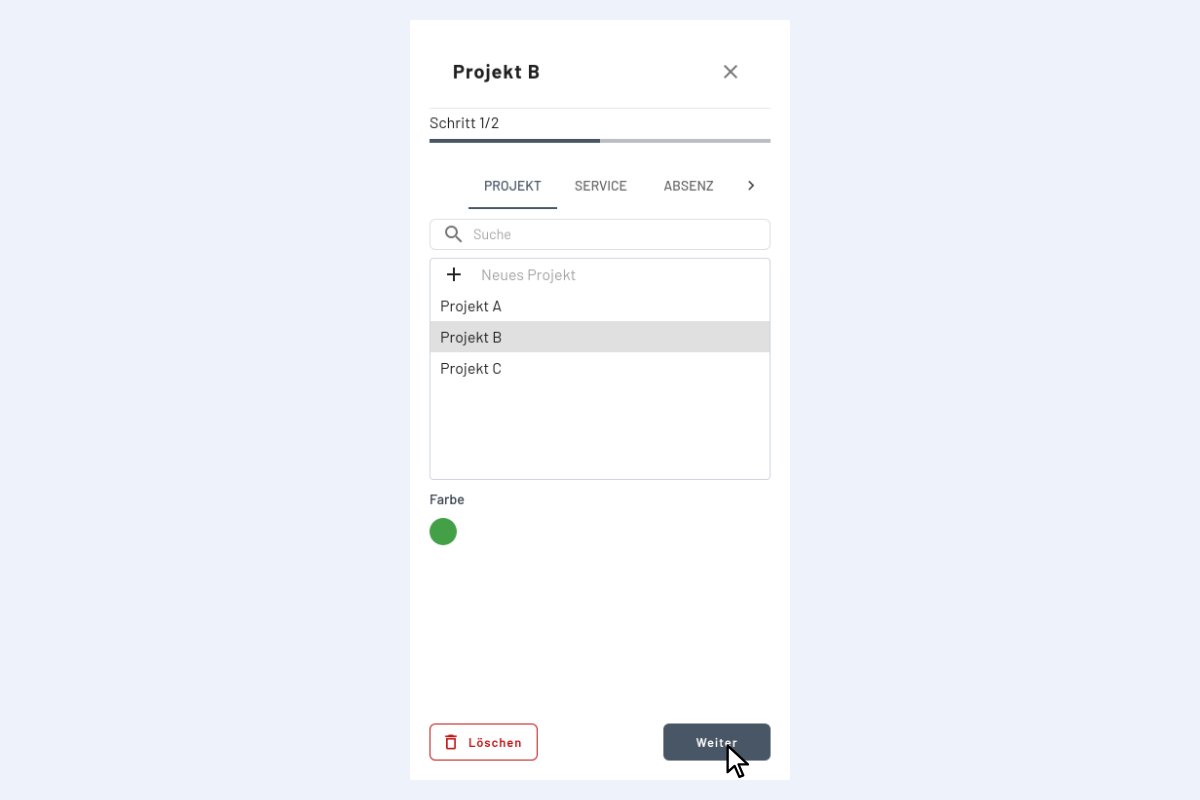
- If the existing scheduling entry should be assigned to a different project, select the desired project, for example, Projekt A (see Fig. Edit Scheduling 2).
- If only the Date, Time, or Notes of the current scheduling entry should be adjusted, click Next.
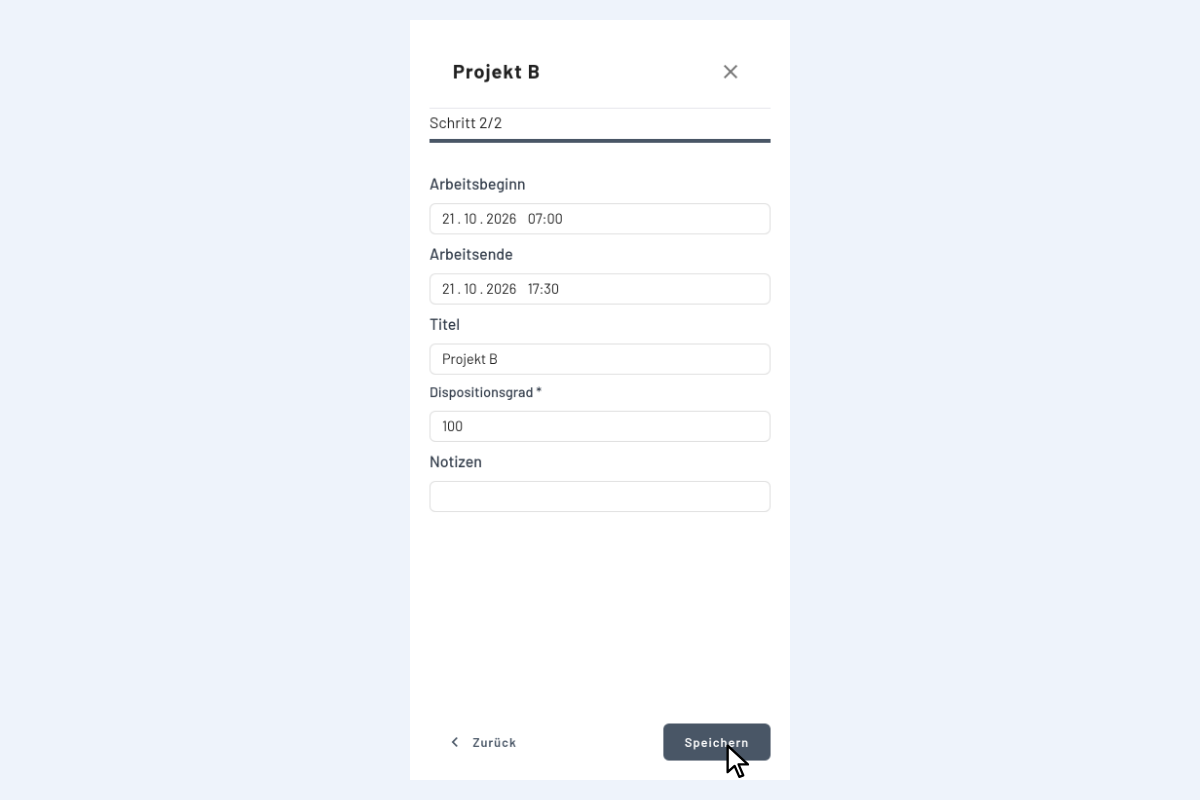
Now the changes can be made and saved (see Fig. Edit Scheduling 3).